How to Avoid Email Hacks

Community cybersecurity guide

Don’t Get
Phished

Phishing emails can look like an evite, endorsement, RSVP, invoice, voicemail, or message from someone in your contacts. Even if it comes from someone you know, it may not be safe.

Emails like these have become increasingly common
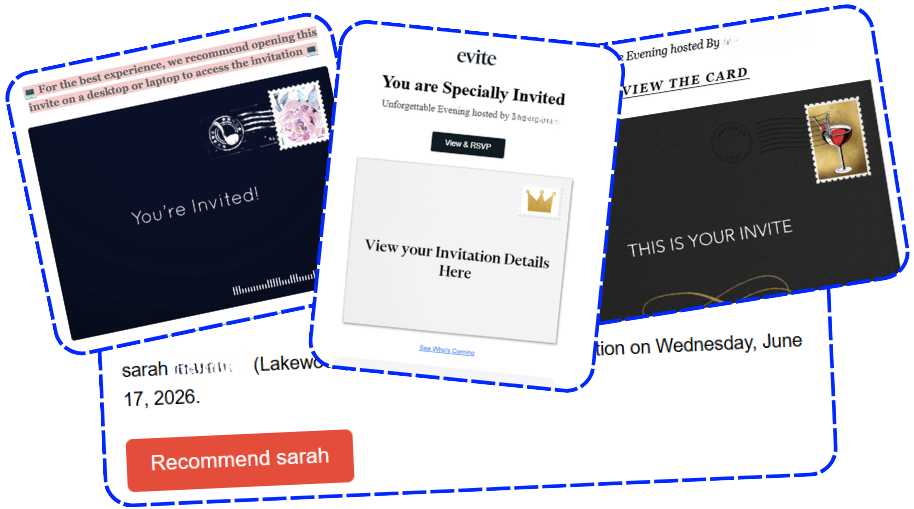
Hackers often use a compromised email account to send catchy messages to that person’s contacts. That is how one clicked message can quickly spread to a full contact list.

The sender may be familiar, but the wording, request, link, or file may be unusual. Treat unexpected account, document, meeting, invoice, and RSVP emails carefully.

They can try to get you to

  • Click a link that leads to a fake login page and give over your email password.
  • Give permission to connect an app to your Google account.
  • Download and run a file that lets an attacker connect to your device.

If you follow through, the attacker may access your email, send messages to your contacts, view sensitive information, access services connected to your email, or gain remote access to the device.

Do yourself a favor. Turn on MFA for every email account.

What to do if
you clicked

How to know if you are in danger

  1. If you opened the email but did not click anything, you are safe.
  2. If you were taken to a login page and entered your password, take the steps below.
  3. If you were asked to connect your Google account and clicked Allow, take the steps below.
  4. If you may have downloaded a file, follow the downloaded file section.

Also check Gmail itself

  1. Open Gmail.
  2. Click Settings, then See all settings.
  3. Click Forwarding and POP/IMAP. Under forwarding, remove any addresses you did not set up.
  4. Click Filters and Blocked Addresses. Delete anything you did not set up.

What to do if you
downloaded a file

How to know if you are in danger

  1. If you downloaded and ran a file, follow the instructions below urgently.
  2. If you did not run anything, open your downloads folder. If you saved the file somewhere else, check there too.
  3. Look for files downloaded around the time of the phishing email, especially files ending in .exe, .msi, .zip, .7z, .rar, .iso, .img, .js, .vbs, .bat, .cmd, .lnk, .docm, .xlsm, .html, or .htm.
  4. If you find a file but did not run it, delete it from downloads and trash.

If you ran a file

  1. Turn off Wi-Fi.
  2. Do not sign into any accounts on that device.
  3. Run a full antivirus scan. If you do not have another antivirus installed, use Windows Security.
  4. If the scan finds anything, follow its recommendations.
  5. Go to Settings > Apps > Installed Apps. Sort by Date Installed and uninstall anything you do not recognize.
  6. Go to your browser extensions and remove anything you do not recognize.
  7. From a different device, change the passwords for your email and any other accounts you use on that device. Enable MFA where possible.
  8. Get help if you are unsure.

Cyber Protection

This guide was compiled as a service to the community by Keystone Cyber Protection. Keystone is a Lakewood-based cybersecurity firm that helps businesses stay secure and avoid getting hacked. We do not work directly with individuals.